Merik suite Merik Merik Studio Viewer QSheets

Every song on one screen. One tap and you play.

Keep your lead sheets, lyrics and chord charts in any folder, in iCloud Drive or On My iPad. QSheets shows them full screen on your iPad or iPhone, plays them as a setlist and keeps itself up to date.

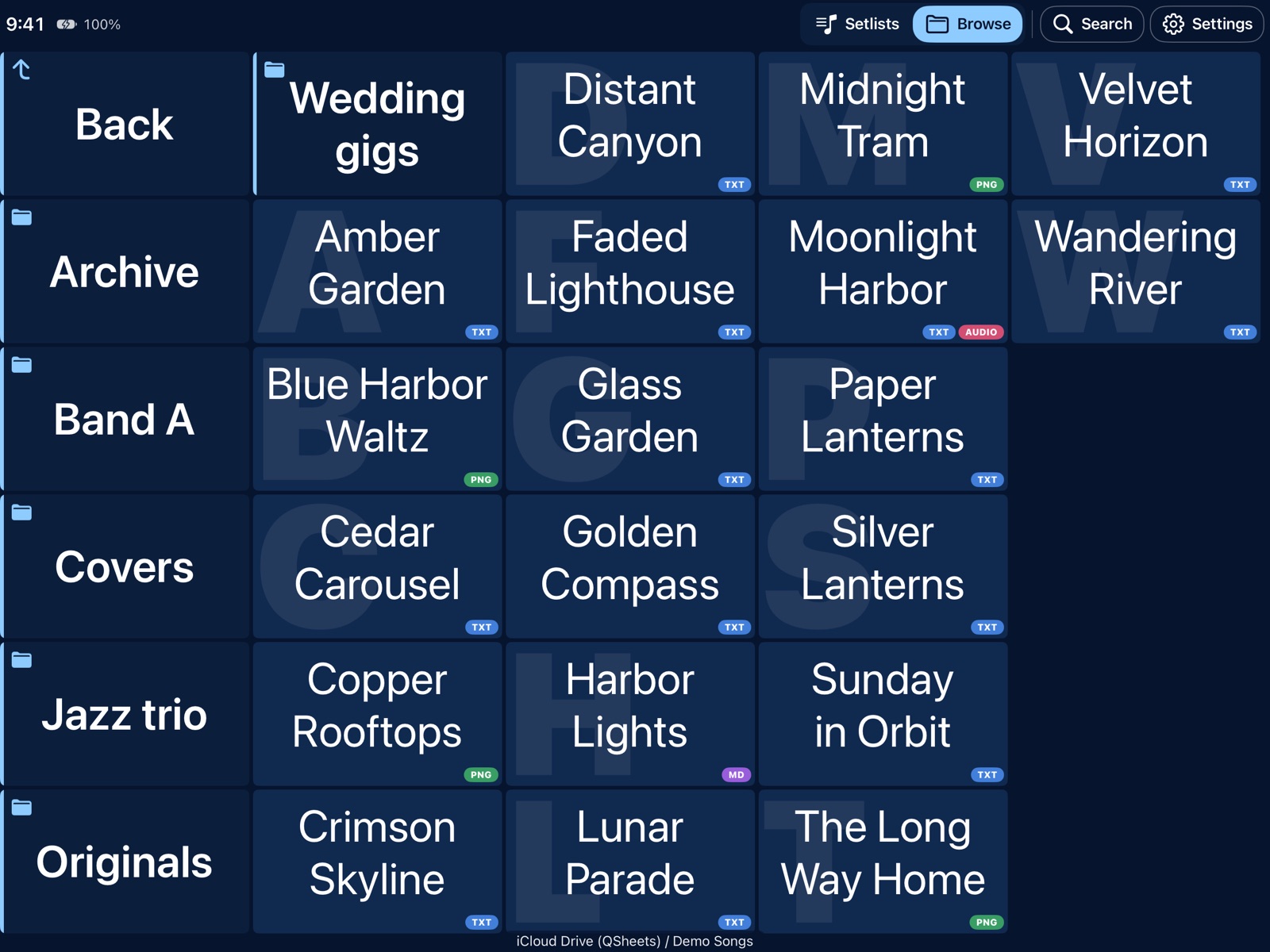
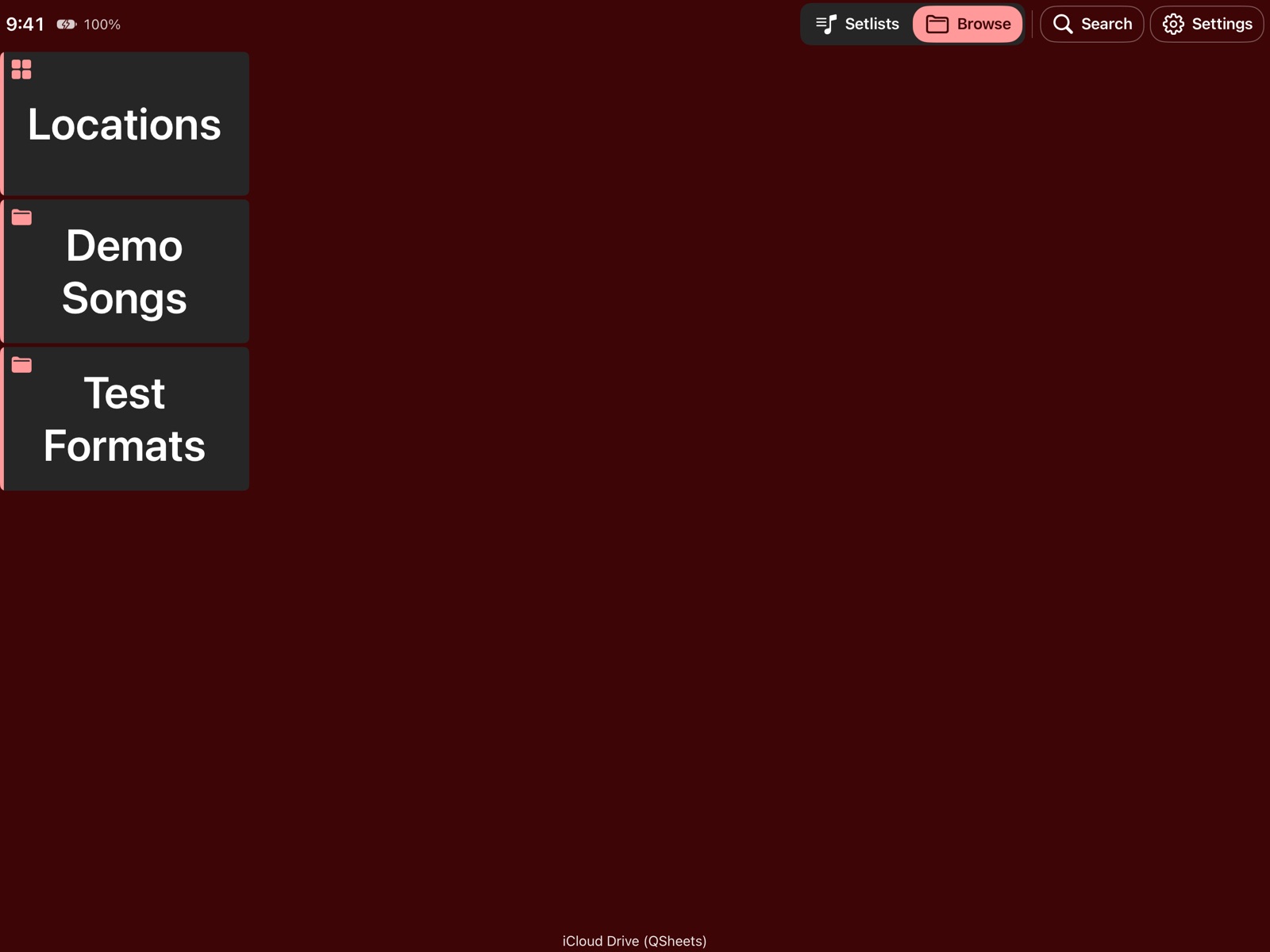
The QSheets Browse screen with the top bar: Setlists, Browse, Search and Settings

The top bar: switch between Setlists and Browse, search, or change the settings.

Getting started

Four simple steps

Your files can be anywhere. iCloud Drive is the handiest, because every iPad and iPhone sees the same songs, but On My iPad works just as well. You do not have to use a special QSheets folder.

1. Put your songs in a folder

  • Use any folder you like, for example Band / Summer gigs in iCloud Drive, or a folder On My iPad.
  • Songs are .txt, .md, .pdf or images. Folders inside folders are fine. More about the files.
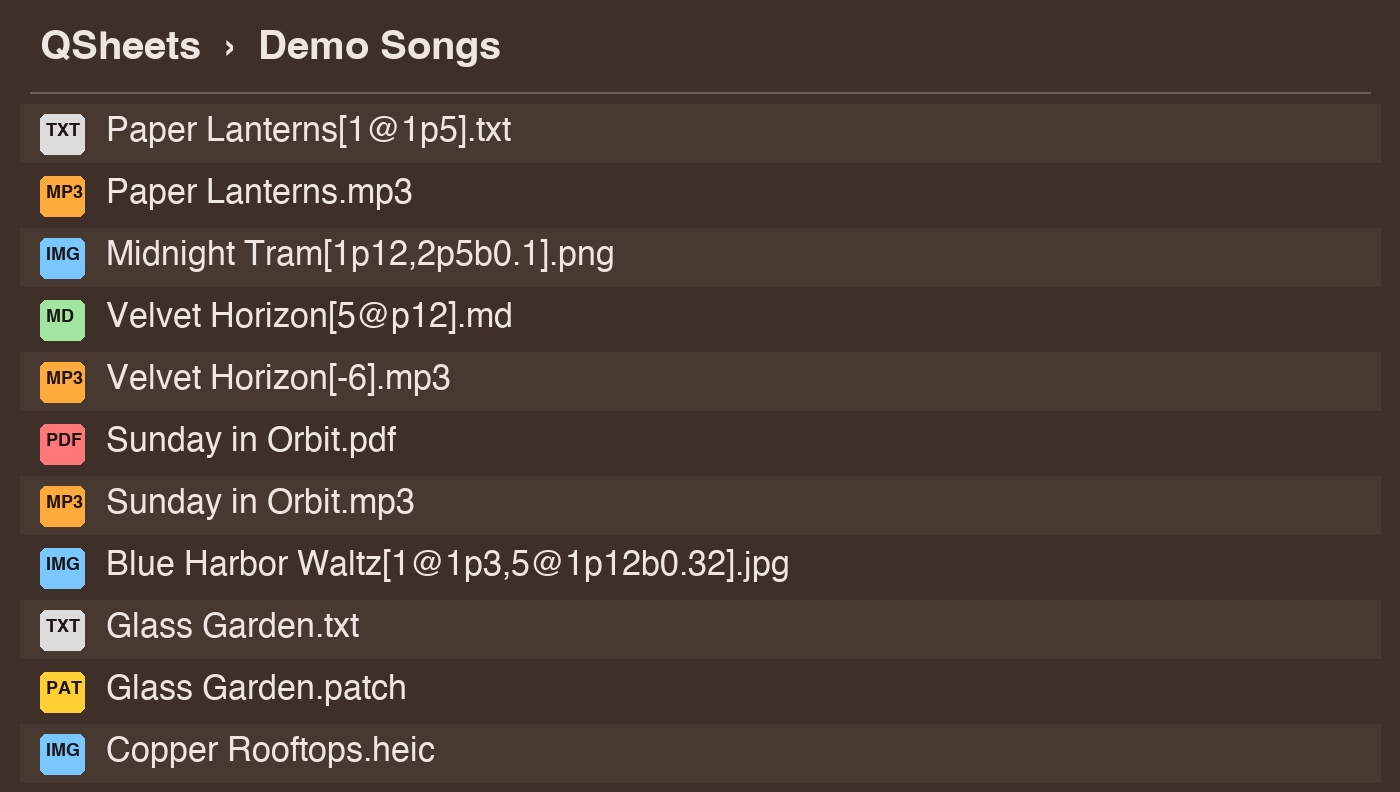
  • Example: Paper Lanterns.pdf and Paper Lanterns.mp3 next to each other.
A folder with made-up songs: text, pdf, image and mp3 files
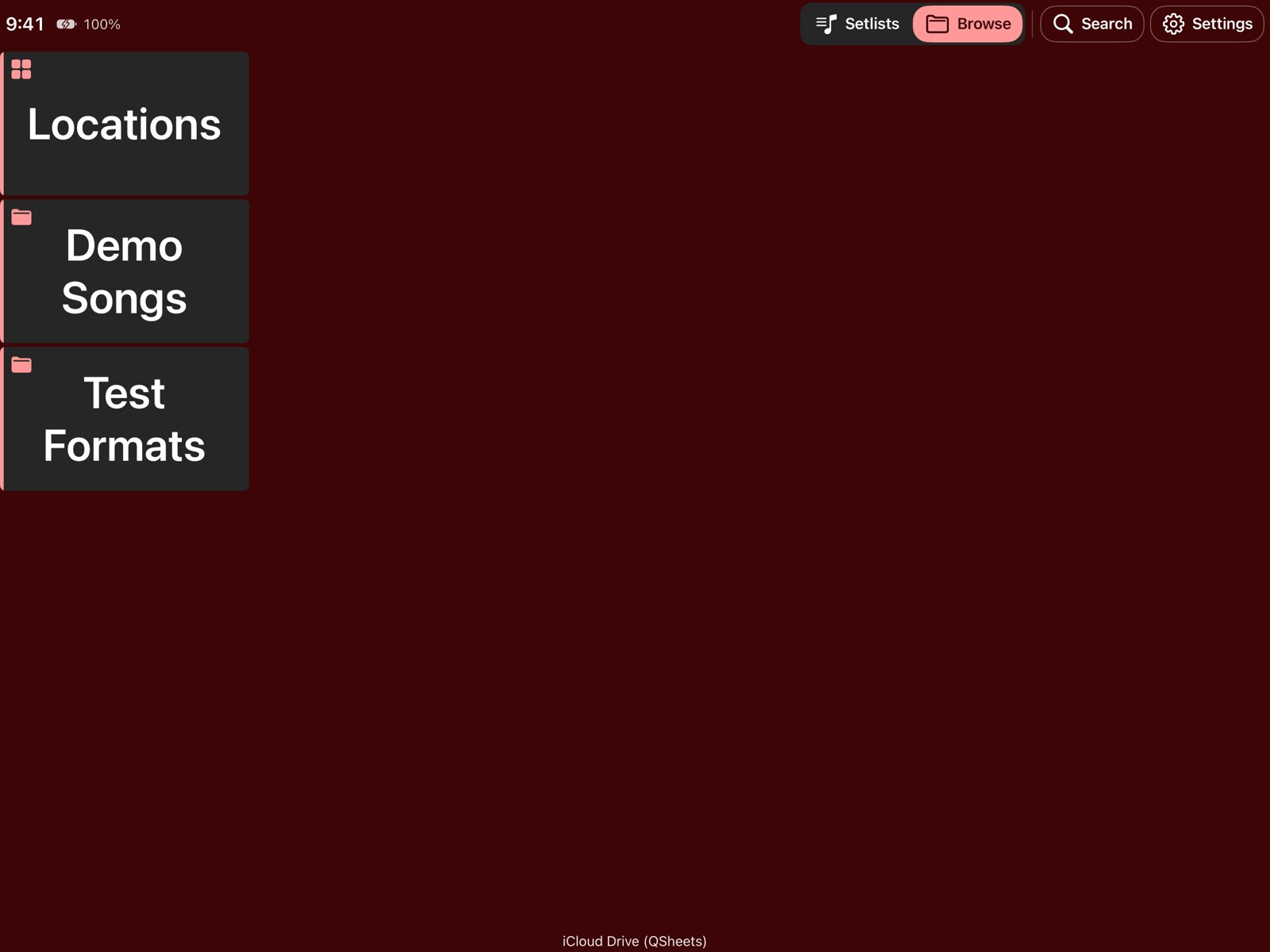
QSheets Browse screen with the Locations button and two folders

2. Tell QSheets where they are

  • Tap Browse, then Locations.
  • iCloud Drive and On My iPad are already there. Tap + Add folder to pick any other folder in the Files picker.
  • QSheets remembers it. The files stay where they are and are never copied.

3. Choose your MIDI instruments

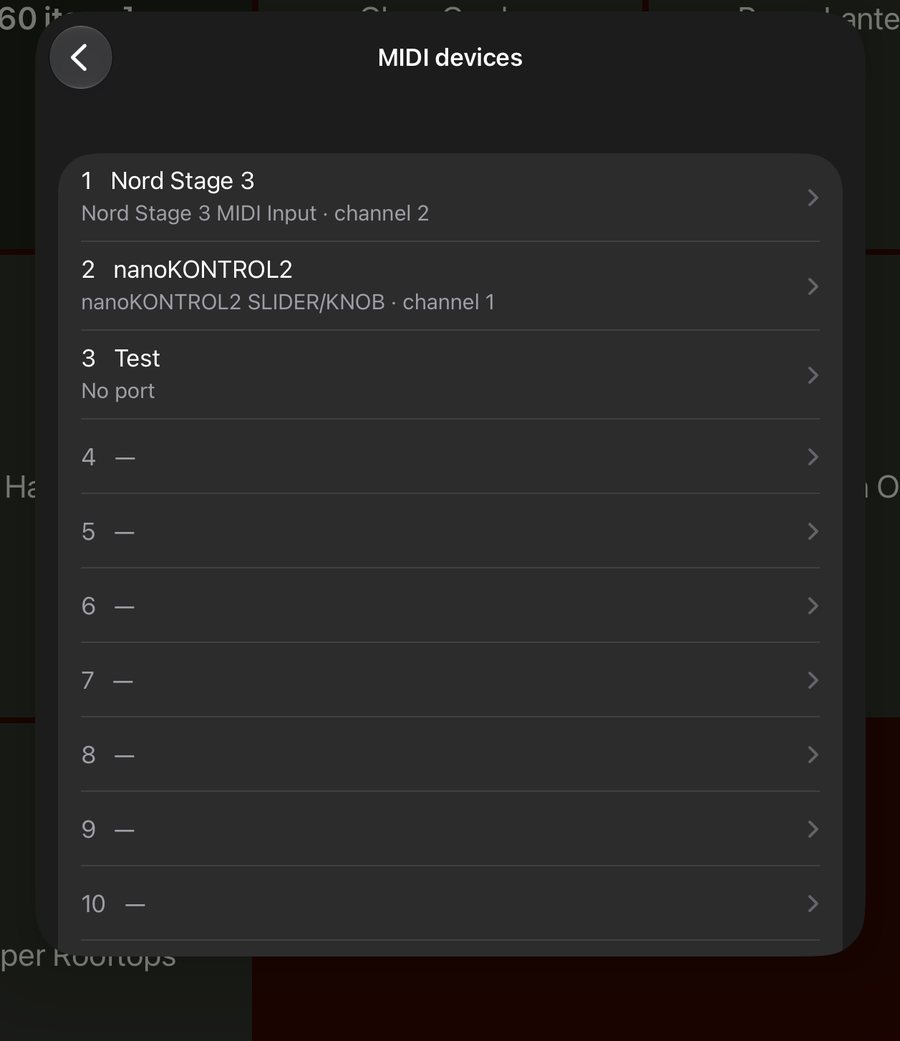
  • Connect your keyboards and open Settings → MIDI devices.
  • Pick every MIDI instrument that is available. Give each one a number and a name, for example 1 Nord Stage 3 and 2 nanoKONTROL2.
  • QSheets remembers the list, also on your other iPads.
The MIDI devices list with two instruments chosen
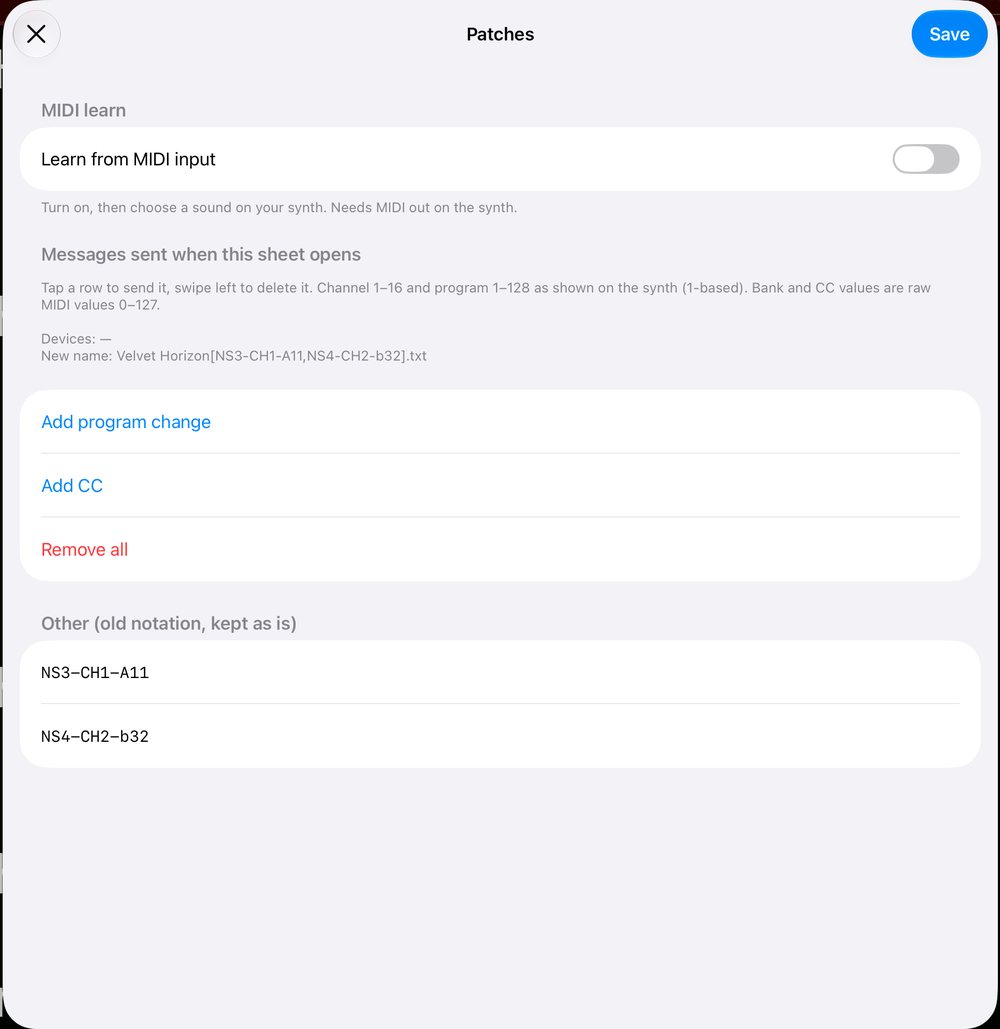
The Patches screen with Learn from MIDI input

4. Learn a sound, save it with the song

  • Open a song and tap Patches. Switch on Learn from MIDI input and choose a sound on your keyboard.
  • QSheets picks up the program change and any CC you move, for example CC 7 (volume).
  • Tap Save. From now on the keyboard switches to this sound whenever the song opens.

The patch is stored in the file name. See the notation.

Two ways to play

Setlist or Browse

Know the order? Use a setlist. Want to pick songs on the spot? Browse your folders.

Setlist mode

Tap Setlists

In the top bar. Tap + to make a new setlist and give it a name.

Add your songs

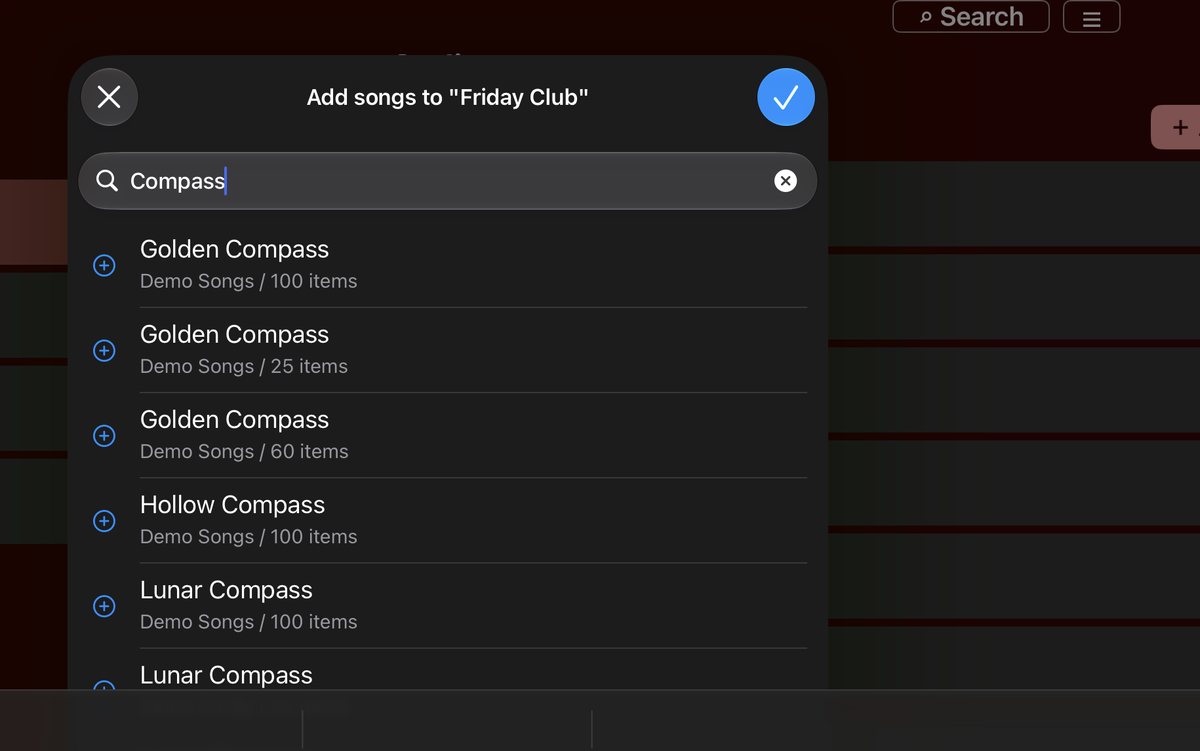
Tap + Add songs, type two letters and tap the songs you want. Drag them into the right order.

Play the set

Tap the first song. Tap the right side for the next song, the left side for the previous one, the middle to go back.

Browse mode

Tap Browse

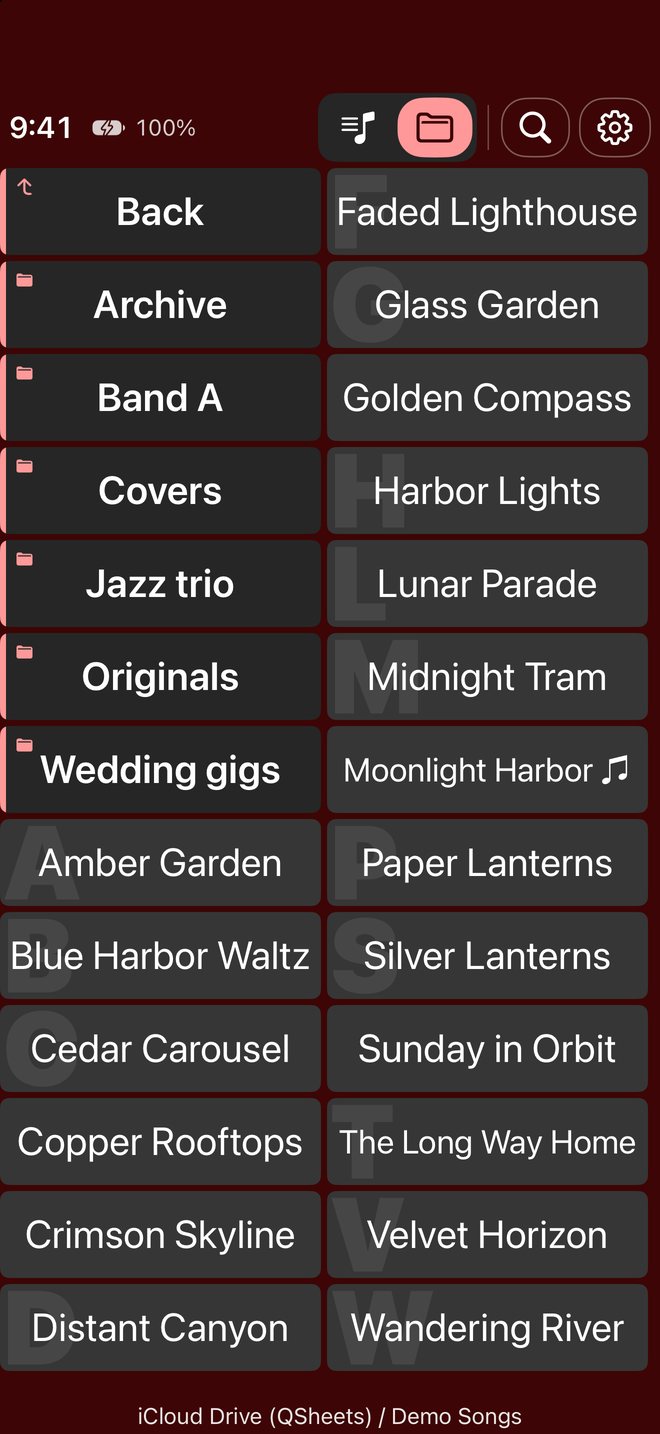
In the top bar. You see every song and folder of your chosen location as large buttons.

Open a folder

Folders are shown first, with a symbol and an accent stripe. .. goes one folder up, and the first layer holds your locations (iCloud Drive, On My iPad, added folders).

Tap a song

It fills the screen. Right is the next song in the folder, left the previous one, the middle brings you back.

Browse

Tap a song, play it

  • All songs at once as buttons, folders first, with a symbol and an accent stripe.
  • As large as possible: text is scaled to the biggest size that fits.
  • .. goes one folder up; the top layer holds your locations.
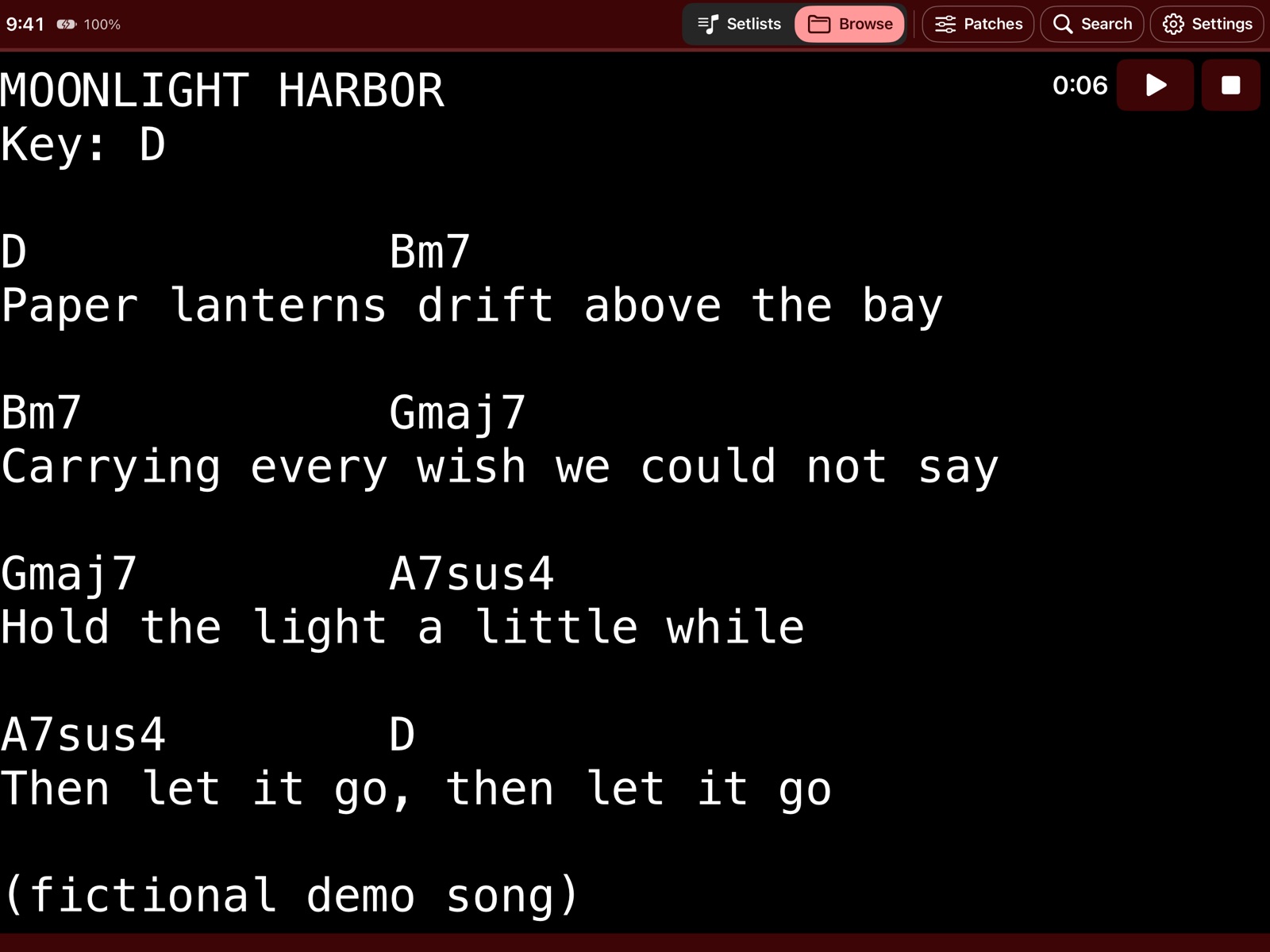
A chord chart full screen
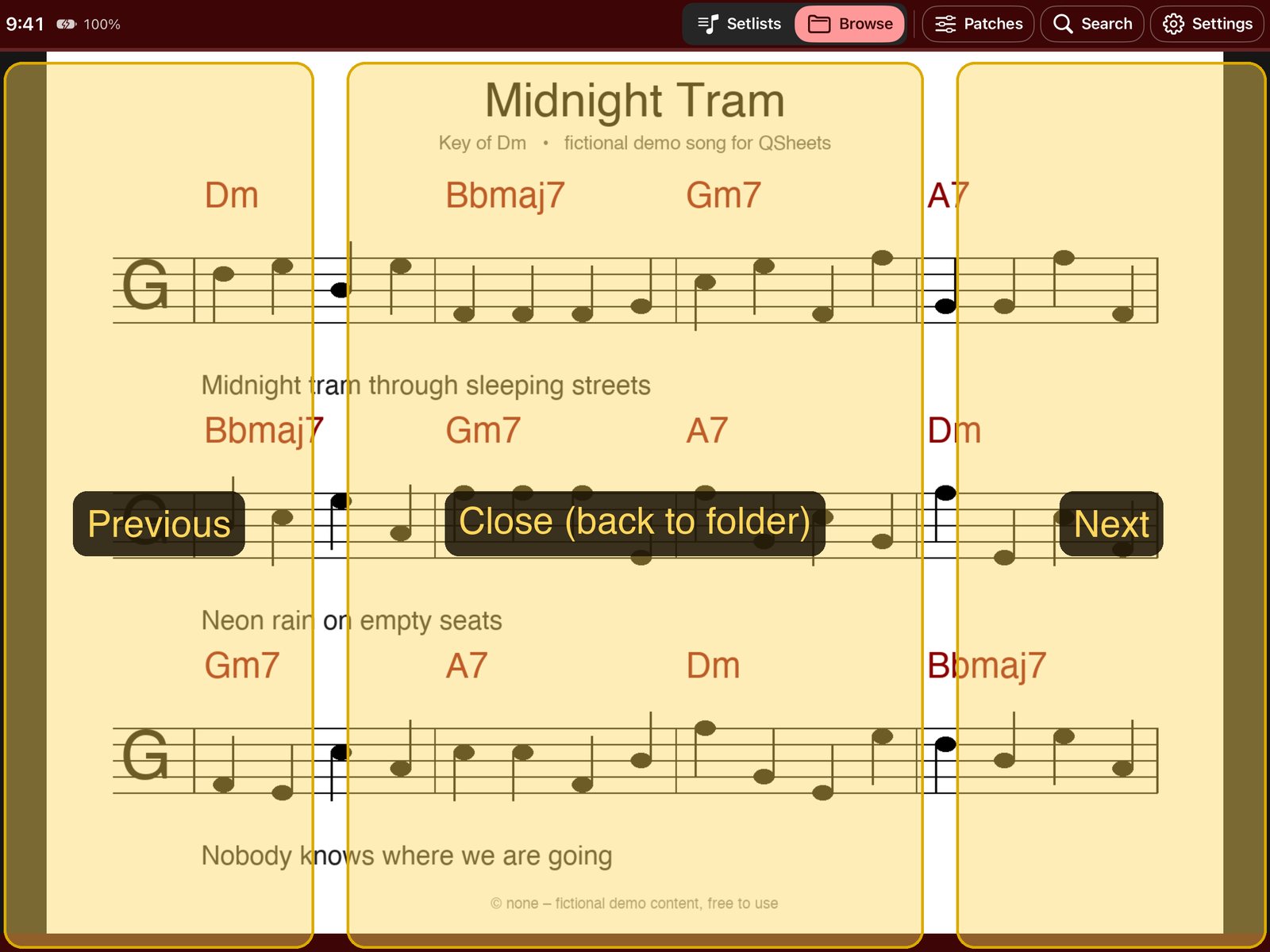
The three tap areas

Three tap areas

  • Left quarter: previous song (or PDF page).
  • Middle: back.
  • Right quarter: next song (or PDF page).

A whole folder at a glance

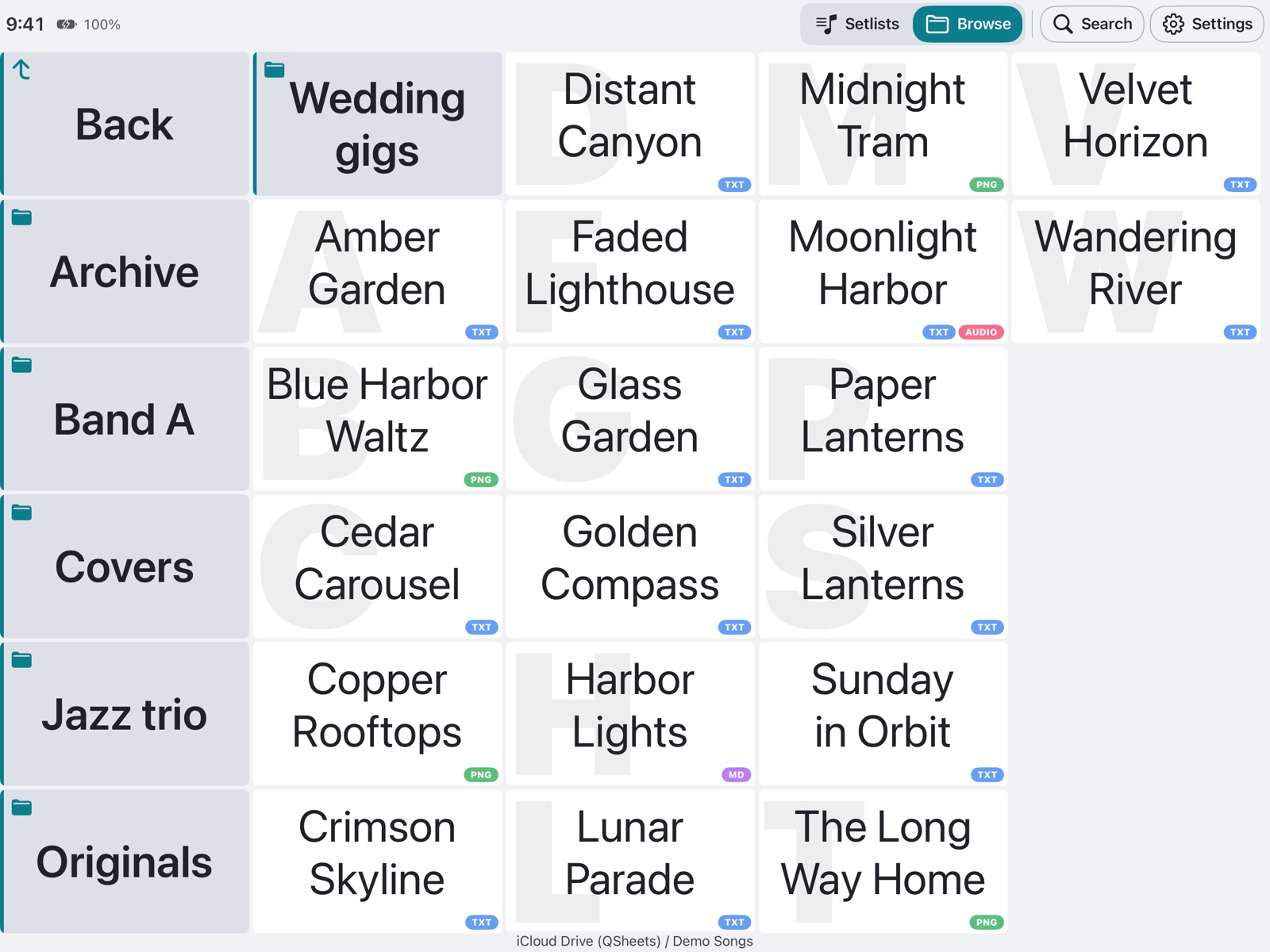
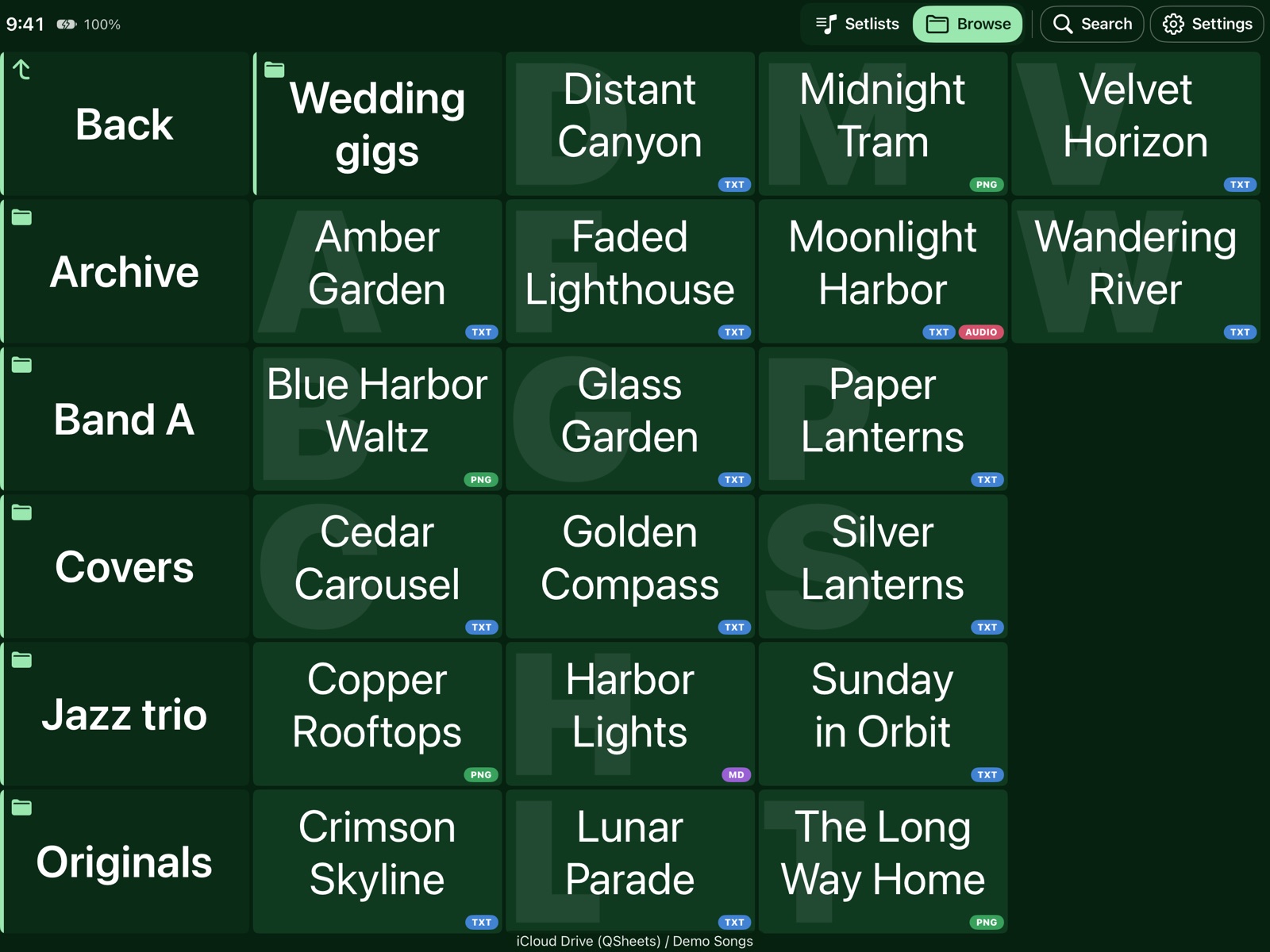
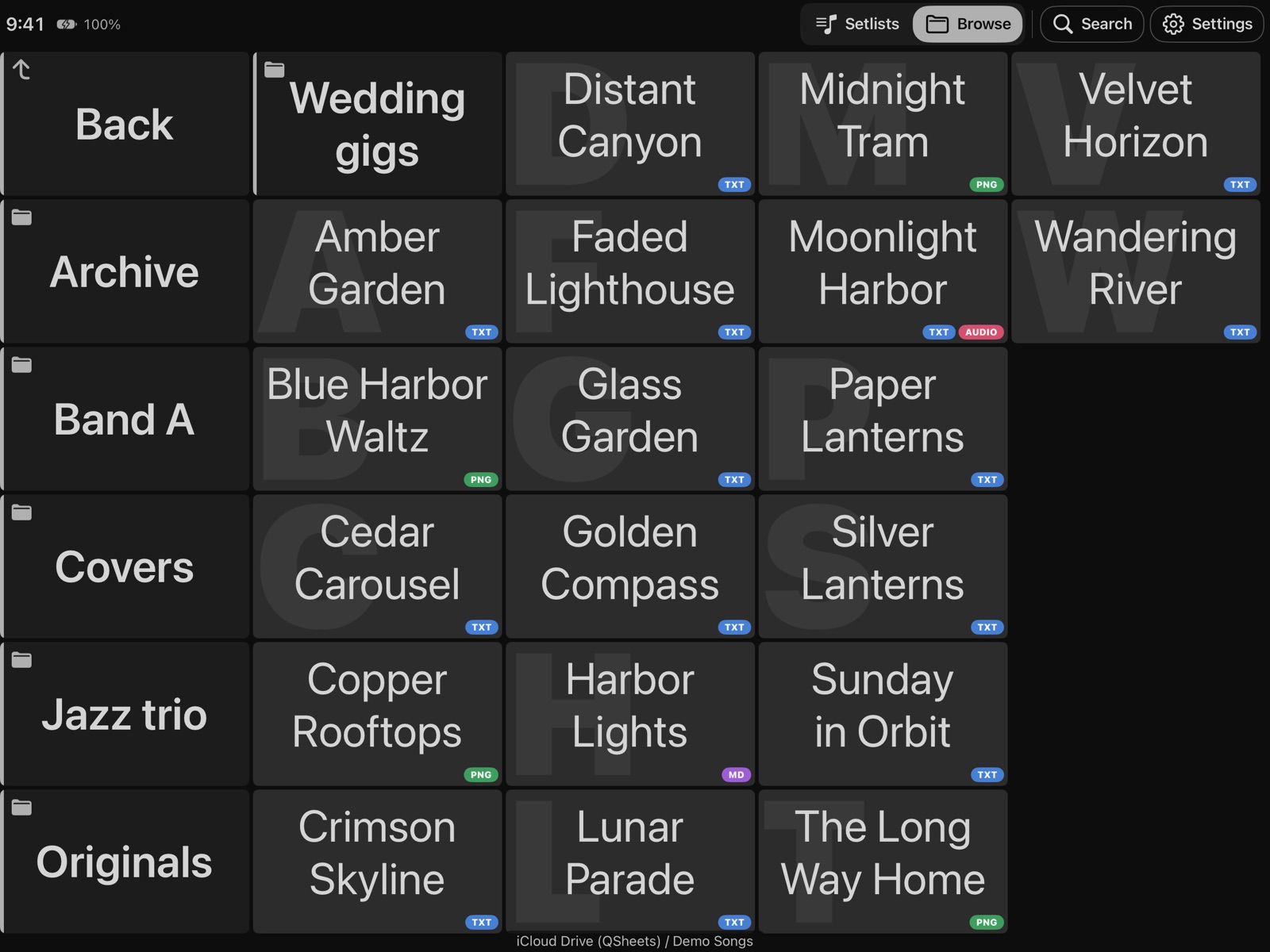
Even a folder of 100 songs fits on one iPad screen, without scrolling. Choose 1 to 6 columns and one of six colour themes. All songs shown are made up.

QSheets Browse screen on an iPad in the White theme
White theme
QSheets Browse screen on an iPad in the Dark green theme
Dark green theme
QSheets Browse screen on an iPad in the Dark blue theme
Dark blue theme
QSheets Browse screen on an iPad in the Dark theme
Dark theme
Setlists

Your set, in order

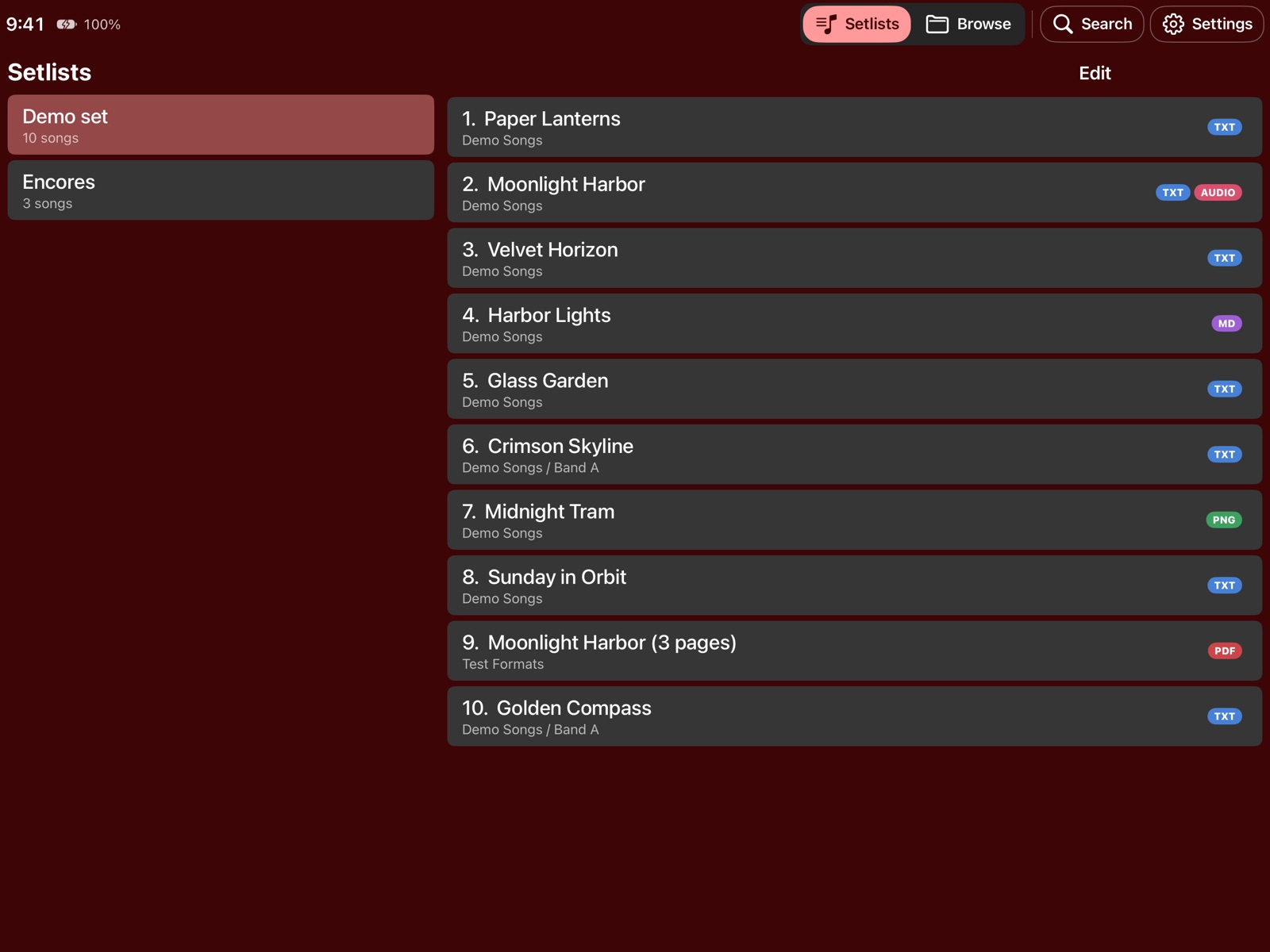
Make as many setlists as you like. Setlists are saved in your iCloud folder, so every iPad sees the same sets.

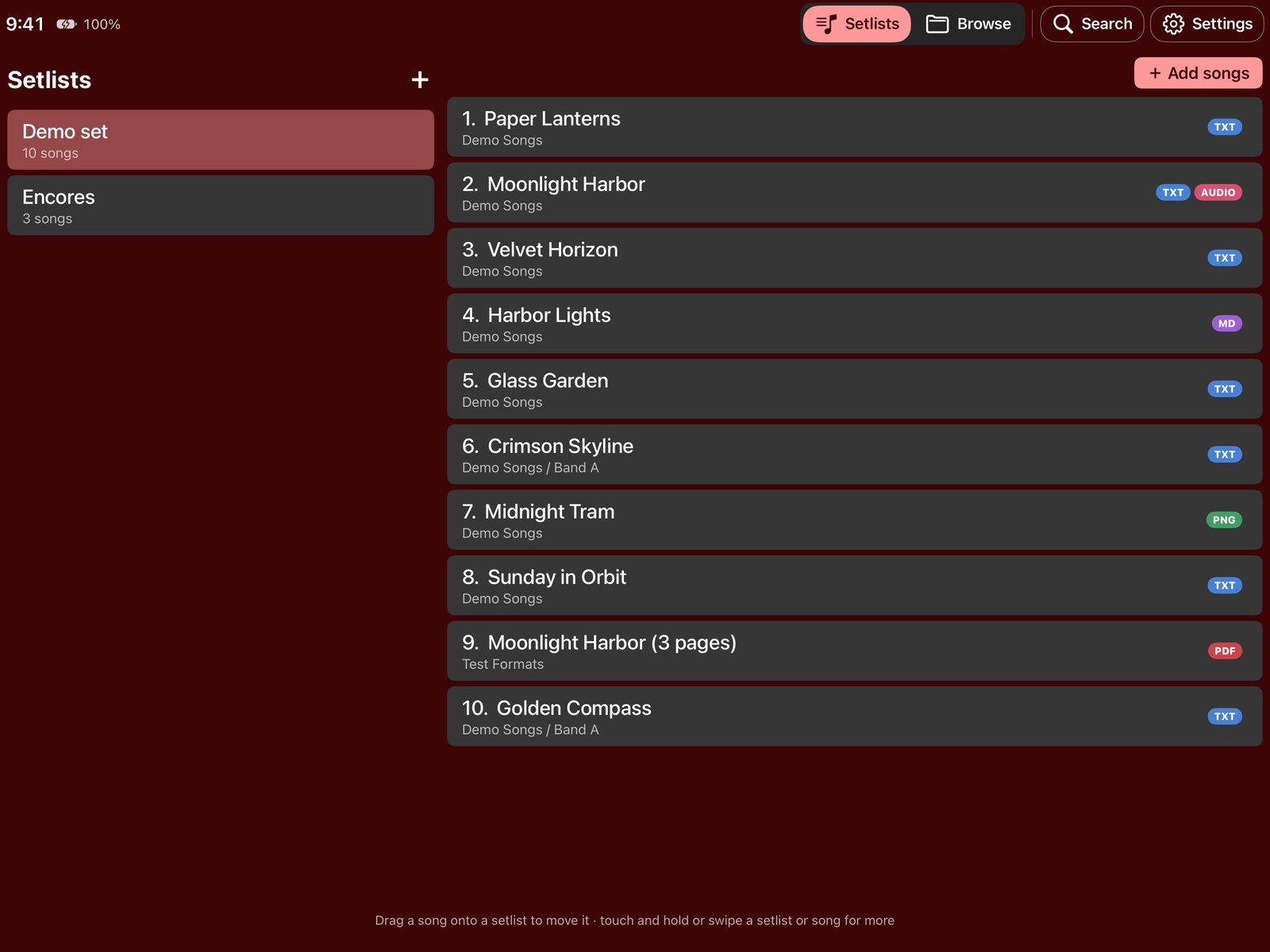
  • Two columns: your setlists on the left, the songs on the right.
  • Tap a song to play the set from there: right is next, left is previous, the middle brings you back.
  • A song that cannot be found any more (renamed or deleted) is shown in red.
Setlist screen with a made-up demo set
Adding songs by searching

Adding and arranging

  • + Add songs opens a search window: type two letters and tap the songs you want.
  • Drag songs into a new order, or onto another setlist to move them.
  • Touch and hold a setlist or song for rename, duplicate, copy, move and delete.
  • Prefer a locked screen on stage? Then changes are only possible after Edit (a setting).
Setlists in edit mode

Edit mode: drag handles, a coloured frame and a Done button.

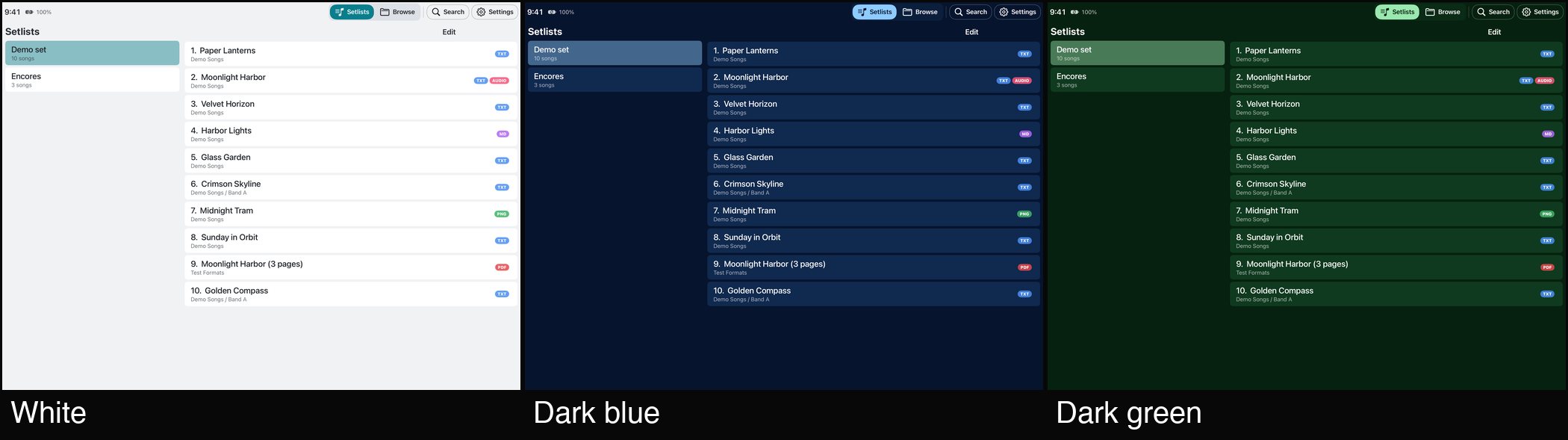
Setlists in the White, Dark blue and Dark green themes

The same screen in three of the six themes.

Backing tracks

Add an mp3, get a play button

Put an mp3 with the same name next to the sheet (Paper Lanterns.txt + Paper Lanterns.mp3). A ♫ appears on the button, and the sheet gets play/pause and stop buttons with the remaining time. It keeps playing with the screen locked.

If the sheet has a MIDI patch in its name

QSheets ignores everything between square brackets when it matches the files, so the patch does not have to be in the mp3 name. Keep the mp3 in the same folder and repeat only the song name:

Velvet Horizon[1p12,2p5].txt     sheet with a MIDI patch
Velvet Horizon.mp3               backing track, found automatically
Velvet Horizon[-6].mp3           same, and it starts at -6 dB

A number between brackets in the mp3 name is the start volume in dB, so do not put the patch there. Longer patches that live in a .patch file work the same way: Velvet Horizon.txt, Velvet Horizon.patch and Velvet Horizon.mp3.

Offline

No internet needed on stage

QSheets downloads everything in your iCloud Drive folders by itself (Settings → iCloud → Keep all songs downloaded, on by default). iOS can clear downloads when your iPad runs out of space; QSheets fetches them again the next time it starts.

Extra safety: in the Files app on the iPad, touch and hold your song folder and choose Keep Downloaded (iPadOS 18 and later). Then iOS never removes the files.
QSheets on an iPhone

On the iPhone too

  • Same folders, same setlists. Everything comes from the same iCloud Drive folders.
  • ♫ shows which songs have a backing track.
  • Six colour themes and a choice between light-on-dark and dark-on-light text.
More

Want to go further?

FAQ

Questions

A song does not show up.

Check the extension (txt, md, pdf, jpg, jpeg, png or heic) and give iCloud a moment to sync. Opening the folder again reloads it.

A song in my setlist is red.

The file was renamed or moved. Add it to the setlist again with + Add songs. Changing only the MIDI part of the name (between brackets) does not break a setlist.

The play button does not appear.

The mp3 name must match the sheet name exactly, without the MIDI part.

Does QSheets need internet during the show?

No. With Keep all songs downloaded on, everything is on the iPad.

Does QSheets collect data?

No. QSheets does not collect any personal information. Your files stay in your own iCloud Drive.

Ready for the next gig?

QSheets is available for iPad and iPhone on the App Store.

More from Erik

Other apps

Coming soon

Merik

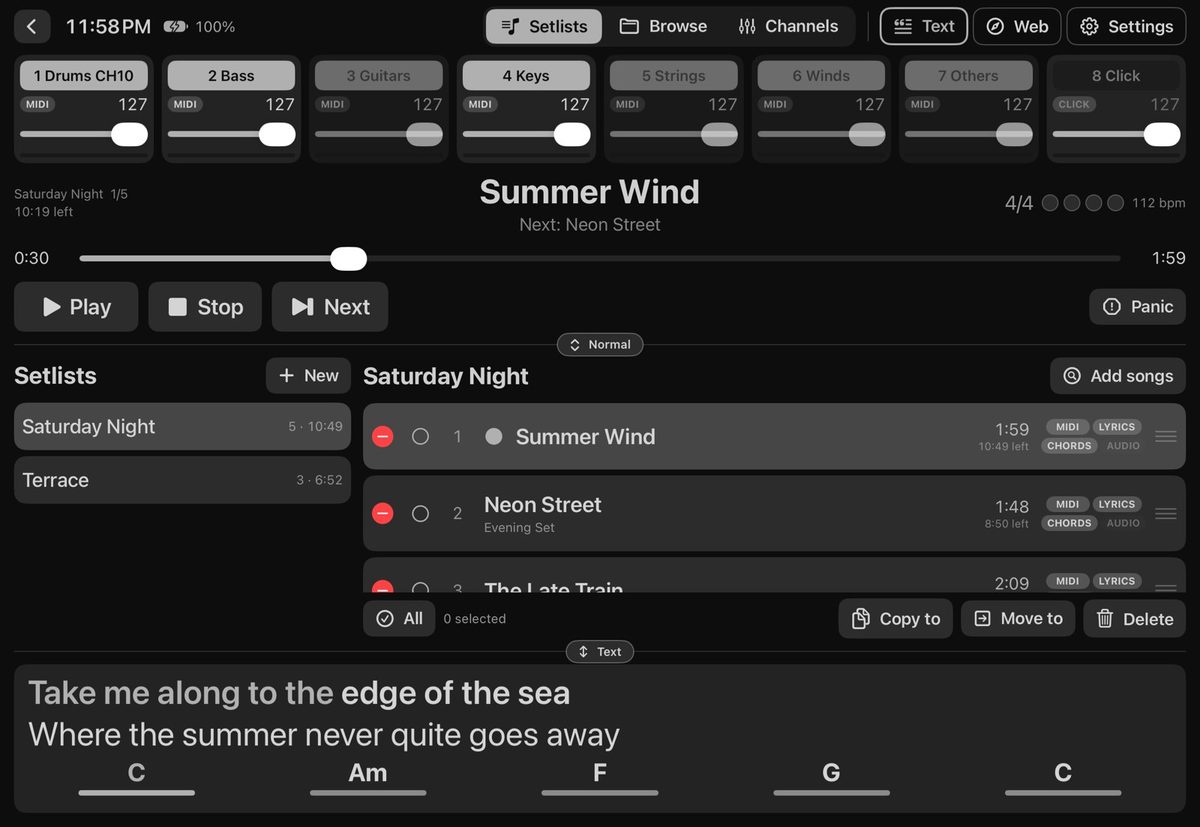
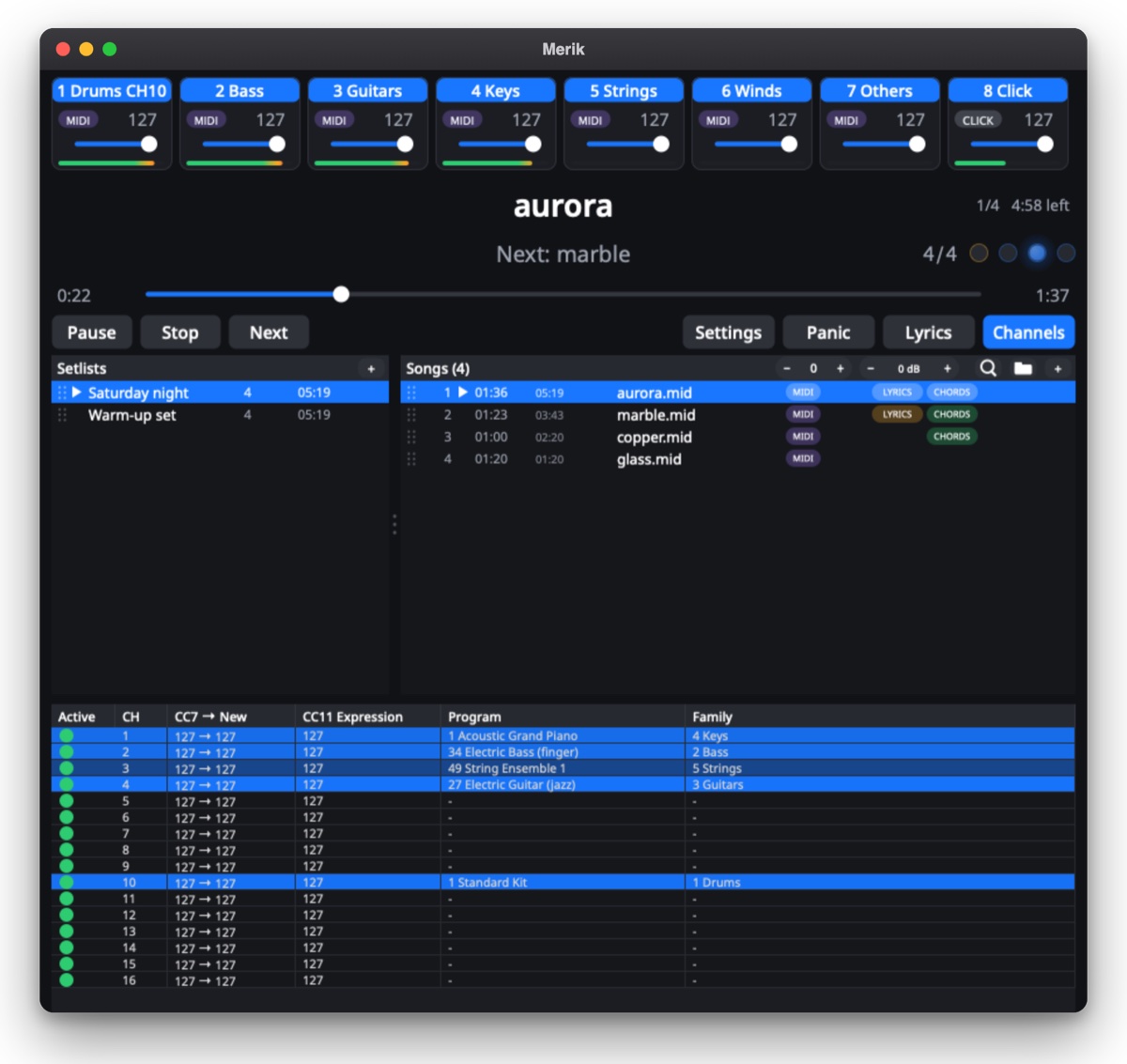
The whole show on one iPad, no laptop needed: audio and MIDI playback, AUv3 instruments and effects, a built-in SoundFont sound, and MIDI out to other iPad apps and external modules. With setlists, and lyrics and chords for the whole band.

Visit the Merik website →
Merik: the player, a setlist and the lyrics with chords