Merik suite Merik Merik Studio Viewer QSheets

The live MIDI/audio backing tracks player built for the stage

Play your MIDI and audio backing tracks from one laptop, and show the lyrics, chords and sections to everybody in the band, on any tablet or phone.

Free software (AGPL-3.0). No cloud, no account.

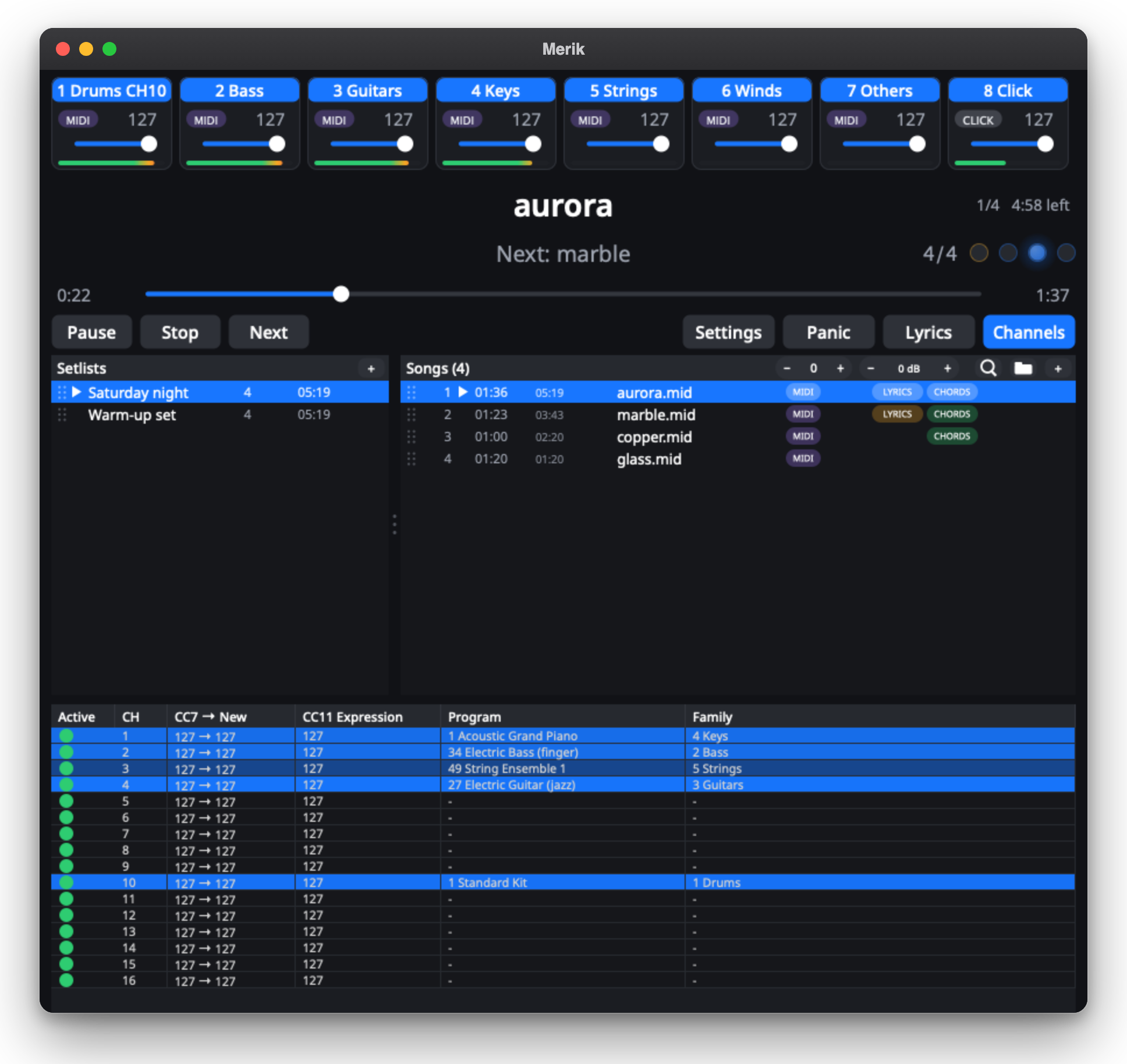
The Merik Studio app: family mixer, setlists and songs
Watch

See Merik Studio in action

A minute and a half: the app, the band's tablet display, and the remote control.

Why Merik Studio

One laptop. The whole band.

Plenty of players can play a MIDI file. Merik Studio is built for the person who runs the whole band from one laptop.

One laptop, one cable

Connect to an audio interface or straight to a digital mixer over USB. The backing band comes from Merik Studio, with the click on its own output for the drummer.

Everybody sees the song

Lyrics and chords in a browser on any iPad, Android tablet or phone at merik.local. Nothing to install on the tablets.

Almost every lyric and chord format

Standard lyrics, karaoke (KAR) and Midisoft files, Yamaha XF chord data, markers and text events, with slash chords. Everything transposes with the music.

Sections

Intro, Verse 2, Chorus, Solo... read from the MIDI file and shown with a beat counter and a countdown before the next line.

Steer the setlist live

Search the whole library from the tablet, play a song now or next, or jump in the setlist, without losing your place. See how much time is left in the set.

MIDI, audio, or both

Play MIDI through a SoundFont or a hardware module, play recorded stems, or mix them per instrument family.

On stage

How it fits together

The laptop stays at the back of the stage, next to the mixer or the stage box to front of house. The band only needs a browser.

Diagram: a laptop with Merik Studio at the back of the stage sends audio over USB to an audio interface or a digital mixer and MIDI to a sound module; the mixer goes to front of house; band members open merik.local on tablets and phones over Wi-Fi, and the ones with the key control playback
One laptop runs the show: audio to the interface or straight into a digital mixer, MIDI to your modules. Every tablet and phone on the Wi-Fi opens merik.local; the players with the key also control playback.
Illustration of a five-piece band on stage seen from above, with the Merik Studio laptop and stage box at the back and tablets on the mic stands
A typical gig from above: the laptop and stage box at the back, lyrics and chords on every mic stand, and the keyboard player running the setlist from a tablet.
For the band

A stage display on every device

Open http://merik.local on any phone, tablet or laptop on the same network. The page is view-only by default, so nobody changes anything by accident.

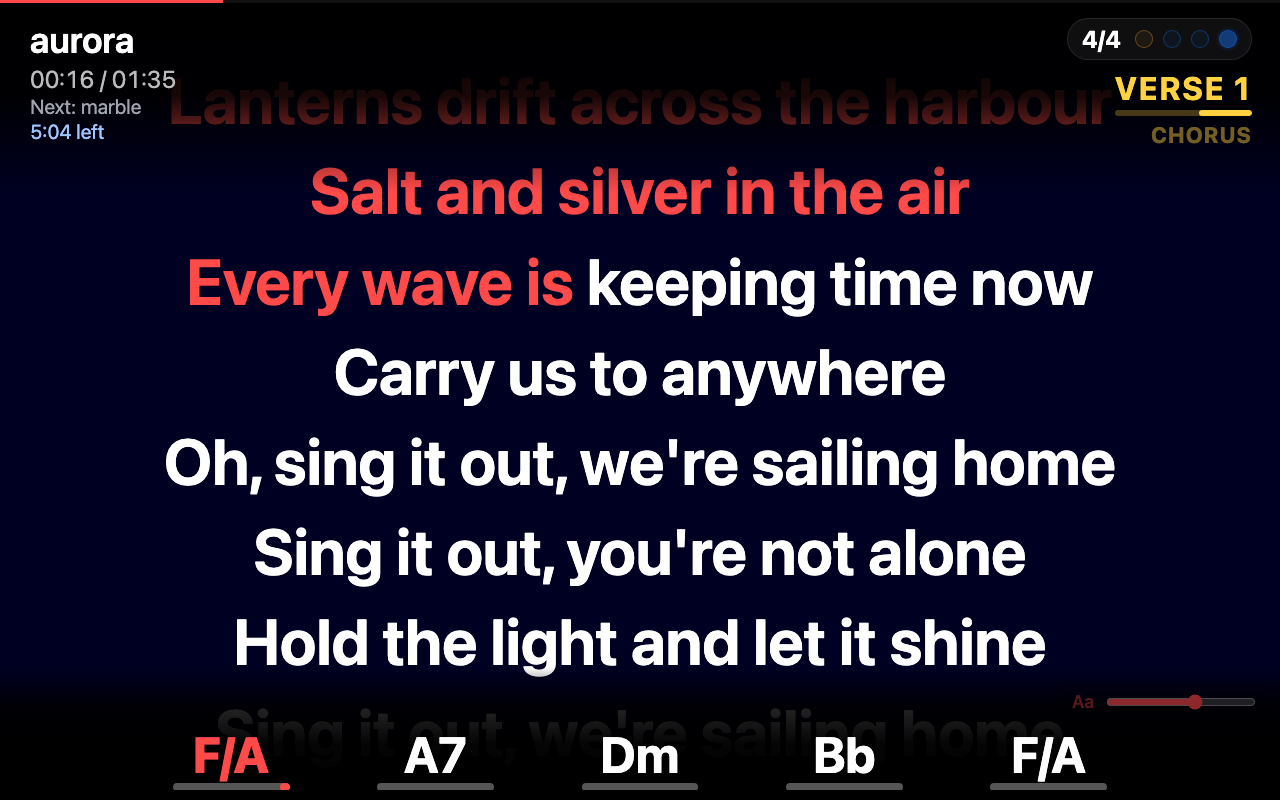
  • Lyrics highlighted word by word, with an adjustable text size.
  • Chords with slash chords and a line that runs out to the next chord.
  • Sections and a beat counter at the top right.
Lyrics, chords, section and beat counter on a tablet
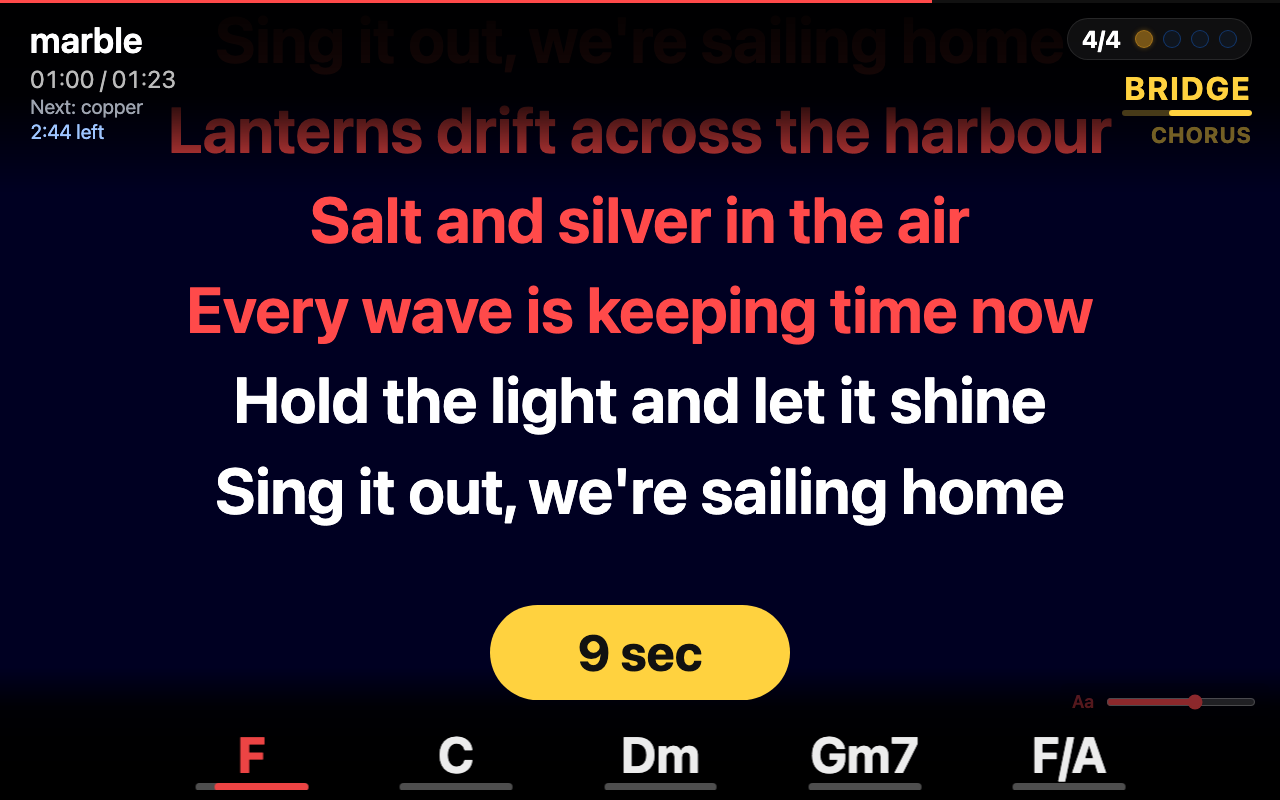
The wait pill counting down in an instrumental part
Never miss your entrance

The wait pill

After a long instrumental part, a yellow pill counts down the seconds to the next line, so the singer knows exactly when to come in.

Sections and chords

Always know where you are

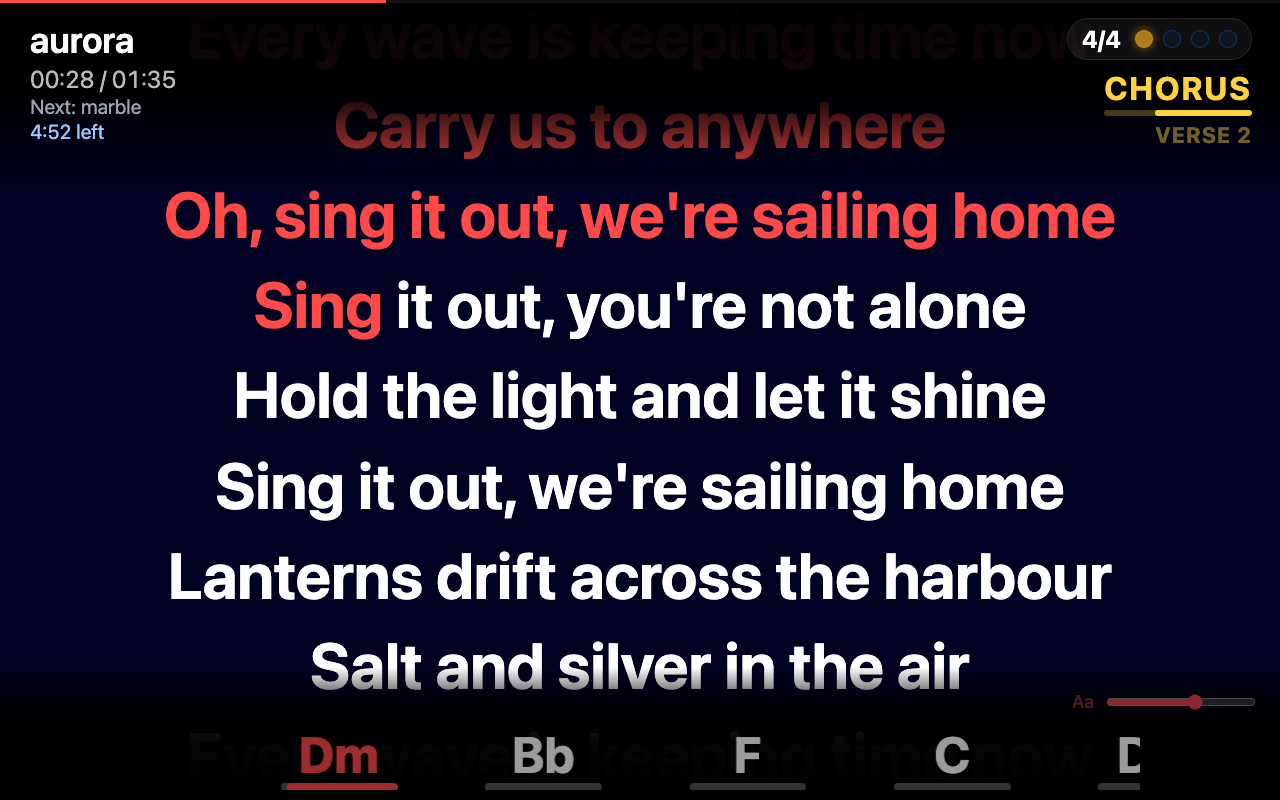
Intro, Verse, Chorus, Solo... read from the MIDI file and shown at the top right, with the current chord and the next ones along the bottom.

The chorus section with its chords
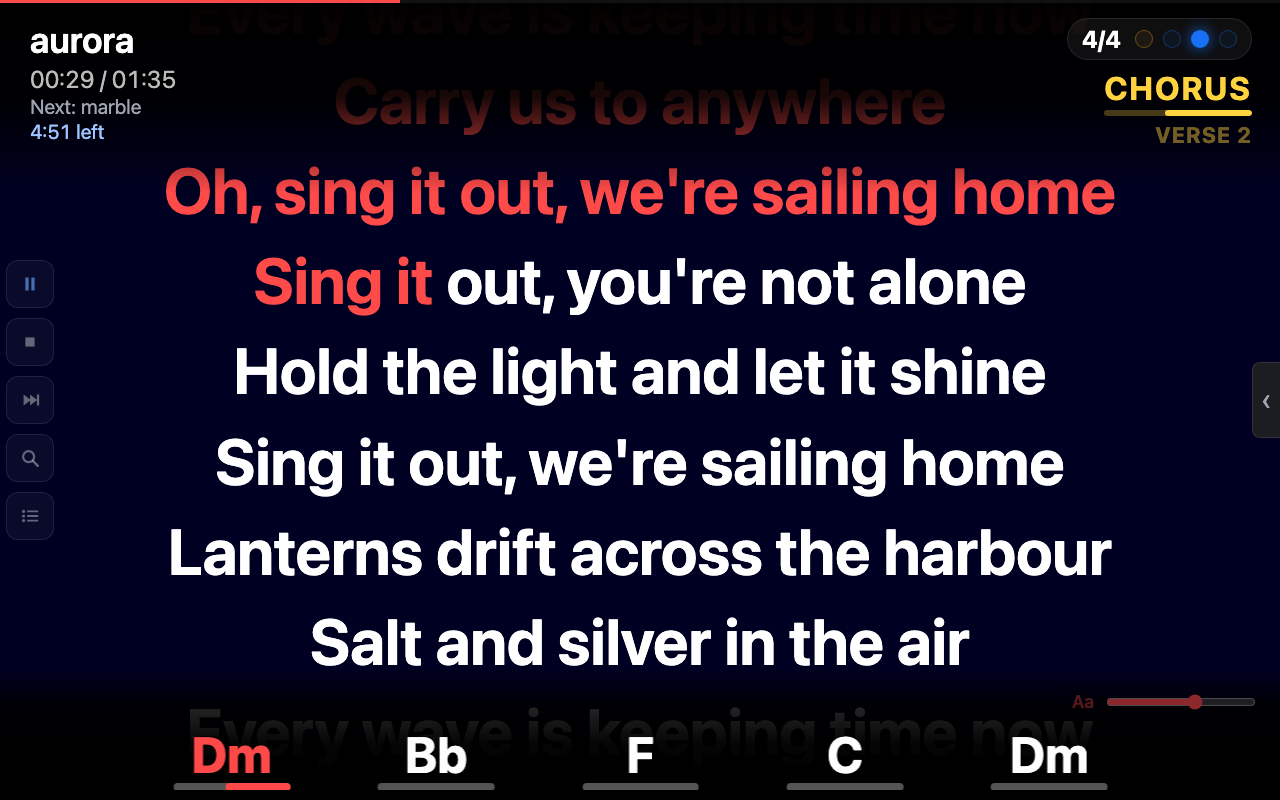
The web page with five control buttons on the left
Remote control

Run the show from the tablet

Add your key to the address and the same page becomes a remote: play, stop, next, search and setlist, plus the family mixer.

  • Play, stop and next from where you stand.
  • Search and setlist buttons for steering the set live.
  • The setlist simply continues from where you are.
Search

Play now, or play next

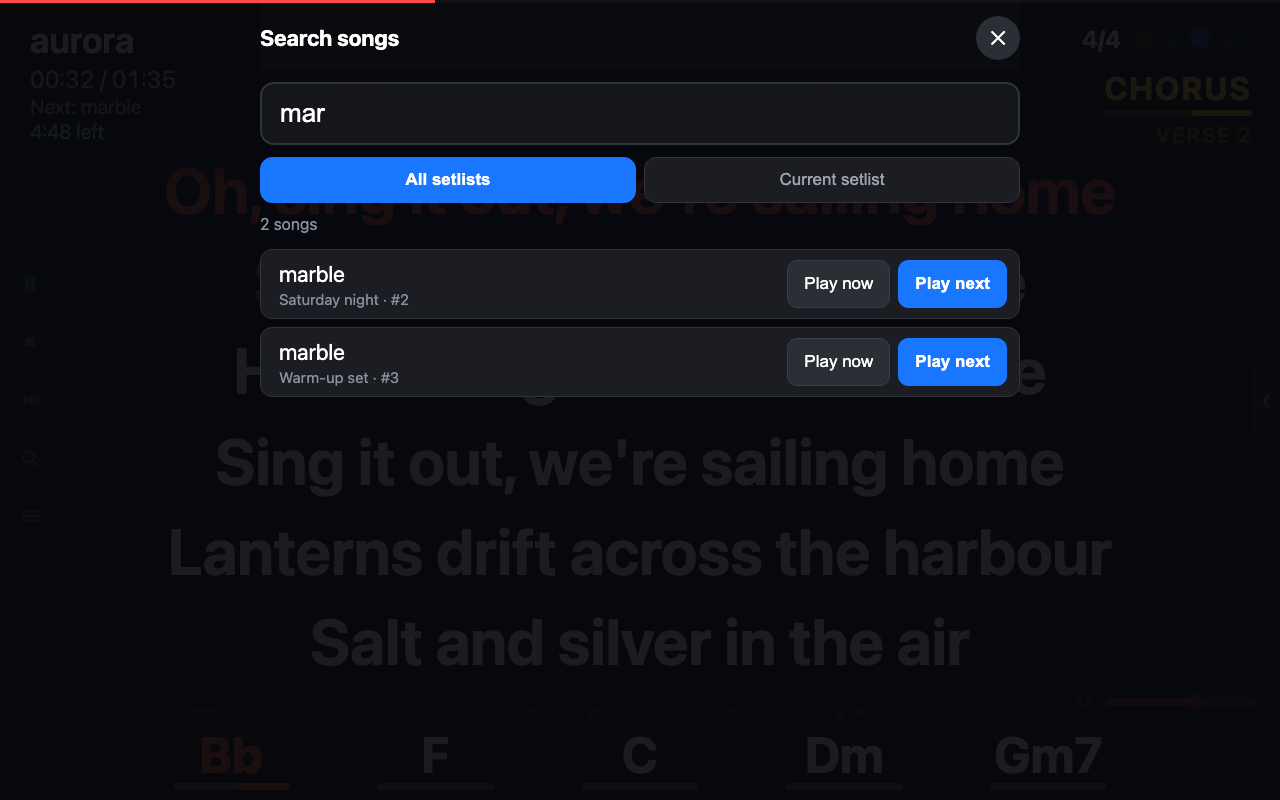
Type three letters and search the current setlist or all setlists. Play now starts the song at once; Play next plays it after the current song. The setlist then continues where it was.

The search screen with Play now and Play next
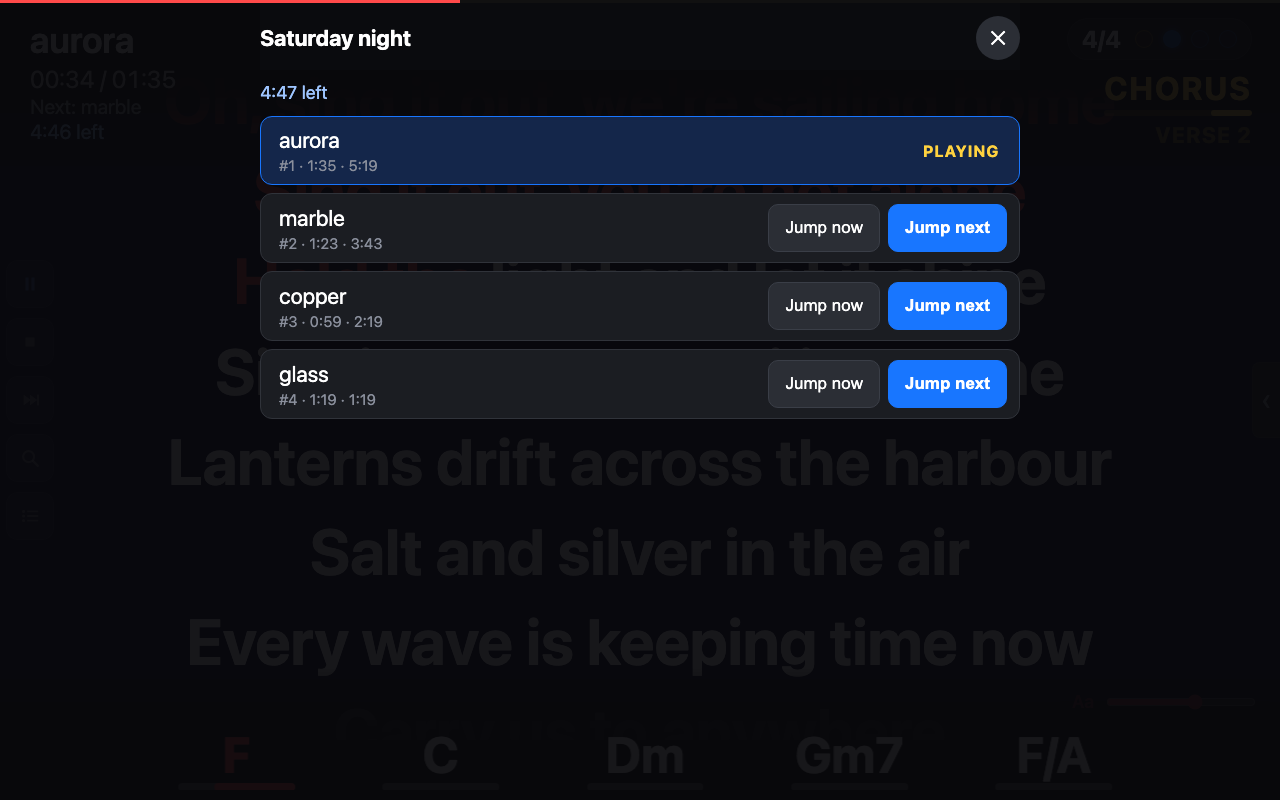
The setlist screen with Jump now and Jump next
Setlist

Jump anywhere in the set

See the whole setlist with the length of every song and the time left until the end. Jump now goes there at once, Jump next goes there after the current song.

How it works

From MIDI file to stage in minutes

Choose a SoundFont, drop in your files, press play.

Pick a sound

Choose a General MIDI SoundFont, or send the MIDI to your own hardware module.

Build setlists

Drag in your MIDI files. Set transpose and volume per song. Merik Studio remembers everything.

Open the web page

Go to merik.local on the band's tablets. Lyrics, chords and sections follow the music.

Or render your sound

Turn MIDI files into audio stems with the internal SoundFont, a plug-in in your host, or a hardware module.

A family mixer, not sixteen faders

Merik Studio groups the MIDI channels by instrument into eight families: drums, bass, guitars, keys, strings, winds, others and the click. Balance the band with eight controls, switch a family off for a live player, and send the click to its own output.

Advanced features

Power tools for serious gigs

Everything you need when the backing tracks are more than a MIDI file.

Batch rendering

Render many MIDI files to audio in one go, with Merik's own SoundFont, a plug-in in a host, or a hardware module. Also from the command line.

Click track generation

A sample-accurate click from the tempo and time signature of every song, on its own output for the drummer, or your own click file.

Lyrics and chords from any file

Reads lyrics and chords from the places MIDI files hide them: karaoke and Midisoft files, Yamaha XF, markers and text events. Slash chords included.

Sections and beat counter

Intro, Verse and Chorus names from the MIDI markers, a beat counter, and a wait pill before the next line.

Mix MIDI and audio per family

Replace only the families you want with recorded audio, such as real drums or a live vocal track, and keep the rest in MIDI.

One-file audio stems

A .merik is a single zip with stems, lyrics, chords and tempo. Easy to copy, and streamed from disk so songs start at once.

Make a .merik from your stems

Point Merik at a folder of backing track stems. It checks them, converts WAV to lossless FLAC, and builds the file.

Per-song transpose and volume

Transpose (MIDI songs) and volume in dB, remembered per song. Chords follow the transpose, drums stay put.

Normalize to the drums

Level MIDI files that were mixed differently against the drum channel, so every song starts from a similar balance.

Outputs per family

Send the band, every stem family, and the click to different outputs of your interface or digital mixer.

Delay compensation

Measures the delay of a recorded sound source and stores it, so audio and MIDI stay together.

Hardware control

MIDI out to modules, and MIDI in from controllers such as the nanoKONTROL2, with LED feedback and a panic button.

Live setlist control

Search all setlists, play now or next, and jump anywhere from the browser, without losing your place. Time left in the set at a glance.

Backup of setlists

All setlists and songs, with titles, transpose and volume, in a single file you can restore anywhere.

Download

Get Merik Studio 1.0.1

Free for macOS and Windows.

What's new in 1.0.1

  • Update check via merik.app. The app asks this website whether a newer version exists, so the update pill keeps working.
  • New in 1.0: the desktop app is now Merik Studio (the name Merik belongs to the iPad app), with a new icon on a plain white background. Settings and setlists carry over.
  • Source code (GNU AGPL v3) is available here.

Read the full release notes · All release notes

First start

macOS opens Merik Studio without extra steps. The Windows installer is not code-signed yet, so Windows may warn.

You need a SoundFont

Merik Studio plays MIDI through a General MIDI SoundFont (.sf2) and does not include one. Good free choices to start with are MatrixSF_v2.1.5.sf2 and MS_Basic.sf2, and any other General MIDI SoundFont works. Choose it under Settings, Soundfont. Check the licence of the one you download.

macOS

Open the DMG, drag Merik Studio to Applications and start it. Coming from Merik 0.7? You can move the old Merik app to the Trash; your settings and setlists are kept. The app is signed and notarized by Apple. macOS may ask once to confirm that it was downloaded from the internet.

Windows

Run the installer. If SmartScreen says "Windows protected your PC", click More info, then Run anyway.

No "Run anyway"? Open Windows Security, App & browser control, Reputation-based protection settings and set Check apps and files to Warn.

Windows 11 with Smart App Control on blocks it completely: open Windows Security, App & browser control, Smart App Control settings and choose Off. On some versions it cannot be turned on again afterwards.

The Windows build is not code-signed yet (code signing is planned), so these warnings can appear.

Merik Studio is free and made in spare time. If it helps your band or your gigs, a coffee keeps the development going.

Found a bug, have an idea, or want to join the beta of Merik? See Support and contact or mail erik.nouveaupays@gmail.com.

Support Merik Studio on Ko-fi
Documentation

Help pages

Step-by-step help pages for everyday use, and technical details for advanced users.

More from Erik

Other apps