Playing MIDI files in setlists
This is the basic way to use Merik Studio: standard MIDI files, played through a SoundFont (or a hardware module), organised in setlists.
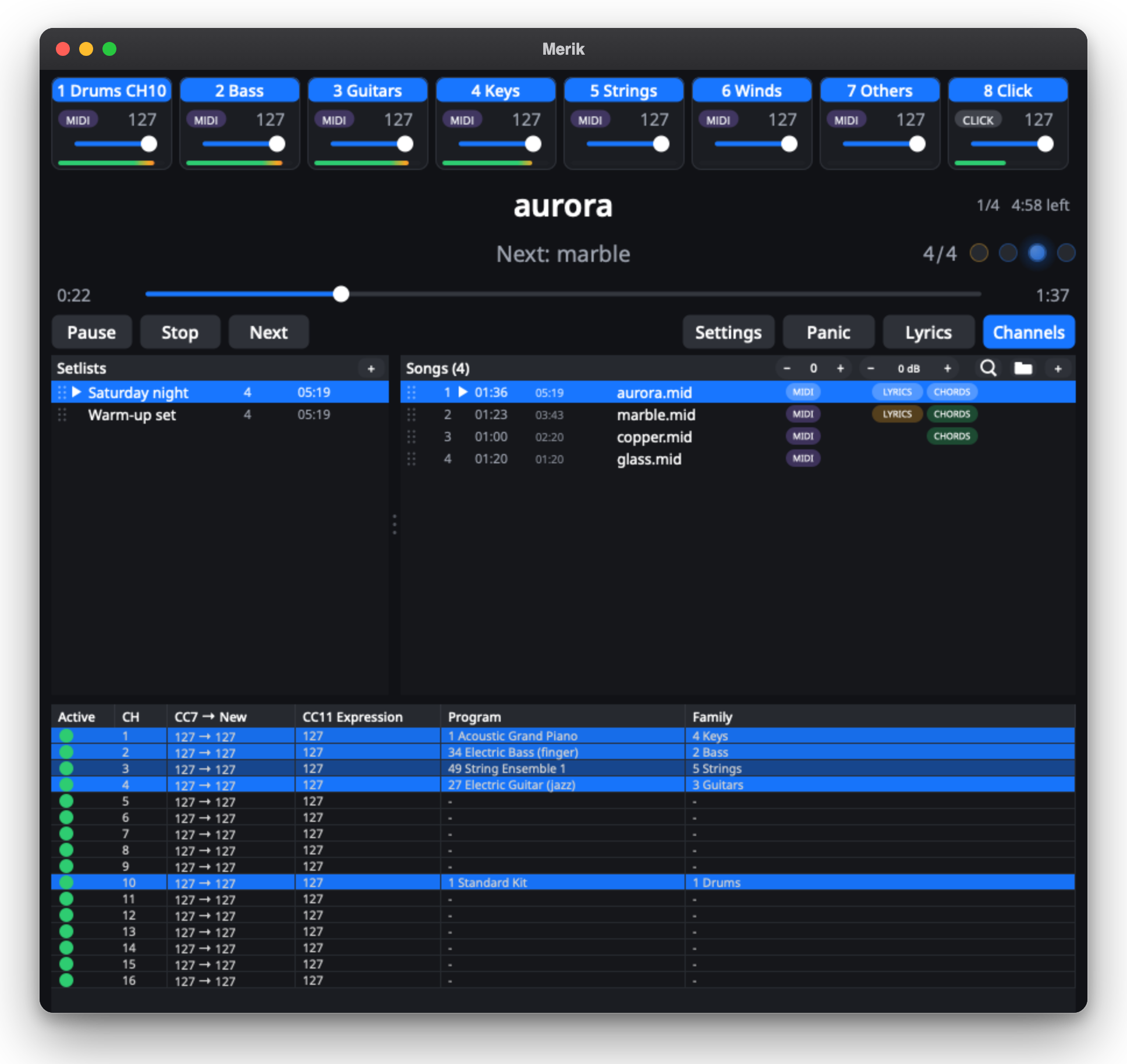
1. Choose the sound
- Open Settings, Soundfont and choose a General MIDI SoundFont (
.sf2). Merik Studio does not include one;MatrixSF_v2.1.5.sf2is a good free choice. - Open Settings, Audio and choose the output device (your audio interface, the USB connection of your digital mixer, or the built-in output), the sample rate and the buffer size. 512 samples at 48 kHz is a good start; go lower if you can, higher if you hear crackles.
- Under Main output choose where the band mix goes. With a multichannel device you pick one stereo pair (or one channel); all other channels stay free, for example for the click.
The gain and reverb of the SoundFont are on the Soundfont tab.
Playing through a hardware module instead? Choose the MIDI output on the Midi tab (the sound then comes from the module, not from Merik Studio).
2. Put songs in setlists
- Drag MIDI files (
.mid,.midi,.kar) onto the window, or press + in the Songs header. - + in the Setlists header makes a new setlist; so does a right-click on the empty space below the setlists.
- Drag songs to reorder them, to move them to another setlist, or hold Command (Ctrl on Windows) to copy them. The same song can be in a setlist more than once.
- The folder icon next to + opens a single MIDI file and plays it once, without putting it in a setlist.
- Everything is remembered between sessions. Missing files are shown in red.
Each song shows its length, the time left until the end of the setlist, and small tags: MIDI, AUDIO, LYRICS, CHORDS, plus the transpose and the volume if you set them.
3. Play
- Double-click a song to load it (it starts at once when Doubleclick starts playing is on, under Settings, General), then press Play or the Space bar.
- Auto play next song in setlist (General) lets the setlist continue by itself. Off means every song waits for you to press Play.
- Next goes to the next song. Stop stops and returns to the start. Panic silences every sounding note at once.
- Drag the position slider to move through the song.
4. Shape the sound
- Family mixer. The eight buttons and faders at the top group the 16 MIDI channels by instrument: drums, bass, guitars, keys, strings, winds, others, and the click. Pull a fader down or switch a family off to leave room for a live player or singer. See How the family mixer works.
- Transpose (the capsule in the Songs header): up or down by semitones, live. Drums stay as they are and the chords follow. It is remembered per song.
- Volume per song (the capsule next to it): a difference in dB, remembered per song, so a quiet song does not need a hand on the fader every time.
- Normalize levels the channels against the drum channel, so files that were mixed differently start from a similar balance.
- Click track. Merik Studio generates a click from the tempo and the time signature of the song, exactly in time with the music. Family 8 sets its volume and switches it on or off. Send it to its own output (for example the drummer's in-ear mix) under Settings, Audio, Click output.
5. Lyrics and chords
Merik Studio reads lyrics (including karaoke .kar files and word-by-word highlighting) and chords (Yamaha XF, Midisoft, markers and text events) from the MIDI file, and also the section names (Intro, Verse, Chorus and so on). Press Lyrics to see them on this computer, or open http://merik.local on any other device so that everybody in the band can read along. More in The web page for the band.
6. Find songs quickly
The magnifier next to the song list (or Ctrl/Cmd+F) searches the current setlist or all setlists after three letters. Each result has Play now and Play next. A song you insert this way does not change where you are in your setlist: when it ends, the setlist continues where it was, and Continue takes you back there. The same search is available on the web page.